Setting Up a Playdate Dev Environment on Linux
I’ve been wanting to get back into gamedev for some time, and I think the key to doing this is to make some small games. A fun platform for this that I’ve been eyeing for some time is the Playdate. I don’t own one, as getting one shipped to Norway is surprisingly exxpensive, but do have access to one on occassion and I was hoping I could mostly get by with the simulator (which seems to mostly be true!). This article will go into the process of getting a decent developer environment set up, which I hope to follow up with updates on the gamedev process itself.
It should also be noted that I’m doing this on Arch Linux, though I think most of what I did here is easy to transfer to any other distro.
Setting up the SDK and type hints
This part was fairly straightforward! I ended up collapsing it into a simple setup.sh script so that this could easily be replicated on another machine:
 1#!/bin/bash
 2set -euo pipefail
 3
 4if [ ! -d "PlaydateSDK" ]; then
 5	echo "Setting up Playdate SDK"
 6	wget https://download.panic.com/playdate_sdk/Linux/PlaydateSDK-latest.tar.gz
 7	tar xvf ./PlaydateSDK-latest.tar.gz
 8	mv PlaydateSDK{-3.0.3,} # normalize folder name
 9	rm ./PlaydateSDK-latest.tar.gz
10fi
11if [ ! -d "playdate-types" ]; then
12	echo "Setting up Playdate types"
13	git clone git@github.com:balpha/playdate-types.git
14	ln -s $(dirname "$0")/playdate-types/__types.lua $(dirname "$0")/PlaydateSDK/CoreLibs/__types.lua
15	mv PlaydateSDK/CoreLibs/__stub.lua{,.bak}
16fi
All this does is get the official SDK, extract the tar, and then set up playdate-types with a symlink.1 This hardcodes the version number to be 3.0.3—I could make this neater, but for a simple setup script that I run once and then forget I decided this was good enough. The SDK README also suggests that you run its setup script, but all it does is add an icon to your desktop (which I don’t have anyway) and add a (fairly aggressive) udev rule. As I do not have a desktop as such and I’m not yet working with real hardware it can be skipped.
Adding good support for the Lua LSP in Neovim
I’m not an experienced Lua developer in the slightest, but after some searching I found this post by Mario Carballo on the Playdate forums giving instructions on how to get this working elegantly for neovim. (It seems to be mostly the same for VSCode, however!)
Basically, I simply had to place a file .luarc.json in the root of the project telling it where to find the library I wanted typing from. I tweaked the answer slightly and ended up with this:
 1{
 2  "telemetry.enable": false,
 3  "runtime.version": "Lua 5.4",
 4  "runtime.special": {
 5    "import": "require"
 6  },
 7  "runtime.nonstandardSymbol": ["+=", "-=", "*=", "/="],
 8  "diagnostics.globals": [
 9    "playdate",
10    "json"
11  ],
12  "diagnostics.disable": ["redefined-local"],
13  "diagnostics.neededFileStatus": {
14    "codestyle-check": "Any"
15  },
16  "diagnostics.libraryFiles": "Disable",
17  "completion.callSnippet": "Replace",
18  "workspace.library": ["PlaydateSDK/CoreLibs"],
19  "workspace.ignoreDir": ["Source/external"]
20}
After adding this I got nice type annotations and docs in Neovim for free (since I already had a Lua LSP set up for editing my Neovim config).
Setting up the simulator to run our “game”
I immediately knew I’d like to abstract this into a build.sh script that compiled the game and then ran it in the simulator for me. Here it is:
1#!/bin/bash
2set -euo pipefail
3
4SCRIPT_PATH=$(dirname "$0")
5export PLAYDATE_SDK_PATH=$SCRIPT_PATH/PlaydateSDK
6PlaydateSDK/bin/pdc $SCRIPT_PATH/Source $SCRIPT_PATH/Game.pdx
7PlaydateSDK/bin/PlaydateSimulator $SCRIPT_PATH/Game.pdx/
pdc is the compiler that ships with the SDK. By default opening the simulator requires you to either manually select the game folder or drag it into the simulator, which is a bit of a hassle to do when rapidly iterating. Luckily it can also take the path to the game as an argument and open it directly that way. After running the build.sh script, this shows up quite quickly:
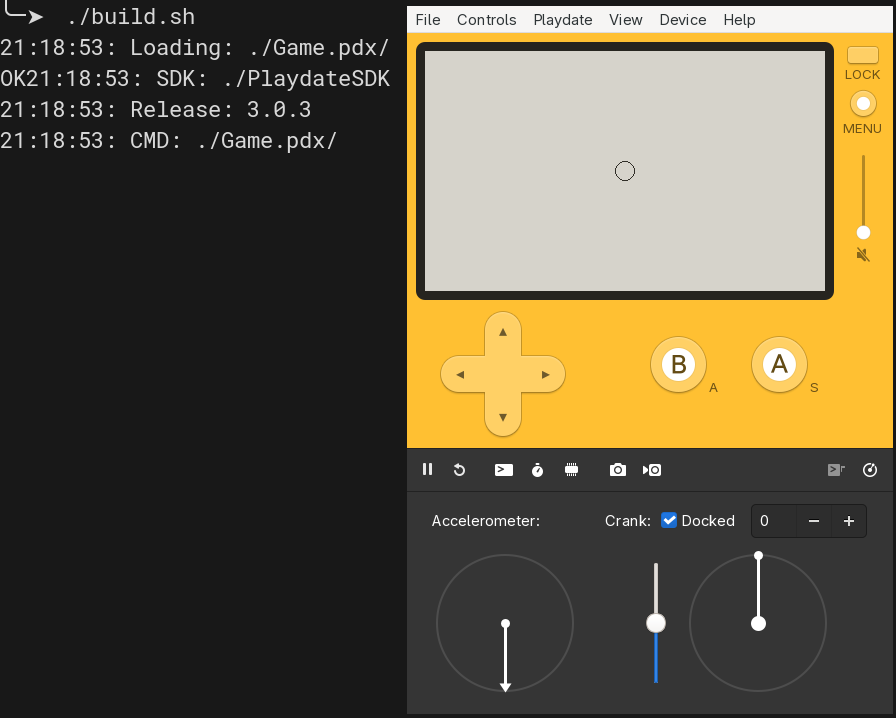
PlaydateSimulator is however built with dynamic linking, so you may have to install some libraries to get it to work—this isn’t really documented as far as I could see, so Linux users are on their own. I only had to run sudo pacman -Syu webkit2gtk-4.1 to get it to work on my machine, but after a quick look with ldd it relies on far more libraries than that.2
Making a basic Playdate game
Here I simply followed the official guide. In the end the structure looks something like this:
.
├── .luarc.json
├── PlaydateSDK/
├── playdate-types/
├── setup.sh
├── build.sh
└── Source/
    ├── main.lua
    ├── pdxinfo
    └── images/
        └── ball.png
This does strike me as a little messier than I would’ve liked—I will probably end up amending the setup script to place the SDK and type hints elsewhere.3
Just for testing, I ended up with a very simple main.lua file adapted from the official guide linked above:
 1import "CoreLibs/object"
 2import "CoreLibs/graphics"
 3import "CoreLibs/sprites"
 4
 5local gfx <const> = playdate.graphics
 6
 7local playerImage = gfx.image.new("images/ball.png")
 8assert(playerImage)
 9
10local playerSprite = gfx.sprite.new(playerImage)
11
12playerSprite:moveTo(200, 120)
13playerSprite:add()
14
15function playdate.update()
16    if playdate.buttonIsPressed(playdate.kButtonUp) then
17        playerSprite:moveBy(0, -2)
18    end
19    if playdate.buttonIsPressed(playdate.kButtonRight) then
20        playerSprite:moveBy(2, 0)
21    end
22    if playdate.buttonIsPressed(playdate.kButtonDown) then
23        playerSprite:moveBy(0, 2)
24    end
25    if playdate.buttonIsPressed(playdate.kButtonLeft) then
26        playerSprite:moveBy(-2, 0)
27    end
28
29    gfx.sprite.update()
30end
For this test I used ball.png found in the SDK at PlaydateSDK/Examples/Single File Examples/assets/ball.png. I also added pdxinfo which contains metadata for the project.
Result
After a bit of fiddling, I now have a setup script I can take with me to set the project up almost instantly on another machine, and a build script that very quickly lets me check if my code works in the simulator. I also have good type hints and documentation right in my editor.
What I don’t have, yet, is an impressive game—or even a game at all! Nor do I have a way to test it on real hardware, as I will have to borrow a Playdate to test that out. I’m hoping to have a followup on that sooner rather than later.
Setting up proper typing is not strictly necessary, but I find developing anything without typing to be needlessly difficult. I’m also not entirely sure why this doesn’t just ship with the SDK. ↩︎
I guess I’m simply lucky to have ended up with enough random junk on my machine over time that it wasn’t a big burden… :) ↩︎
I’m also, strictly on an aesthetic level, not a fan of
Sourcerather thansrc, but it’s what the examples in the SDK used, and I figure it is better to follow convention than to do whatever I prefer every time. ↩︎